By Rufus editorial team · Last verified [date] · Current release [tag]
Install with winget
Rufus is a local Windows USB writer. Package id in Windows Package Manager is Rufus.Rufus.
winget install -e --id Rufus.RufusThat identifier sits in microsoft/winget-pkgs. InstallerType is portable. Architecture x64 InstallerUrl points at the current standard exe family on recent manifests. Related: how to install winget, winget guide, for this computer.
Install with the official exe
Download the current standard exe from rufus.ie or GitHub Releases. Run the exe. Official Usage says no installation is necessary. Portable and other arches are supporting. Releases map: releases.
After install
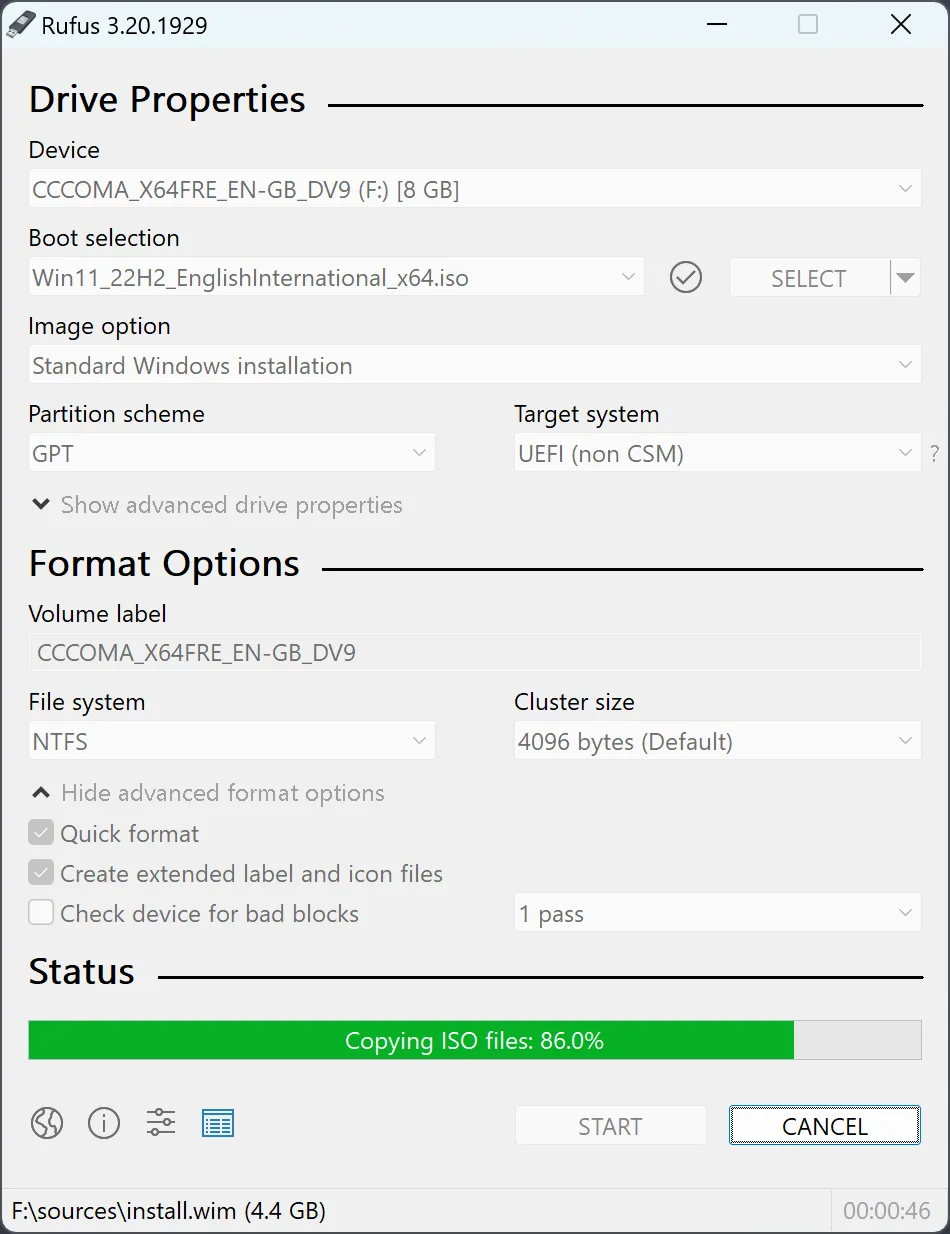
Open the main dialog, select a spare USB, and write a trusted ISO. First hour: installed. First run: rufus-first-run. Safety: is-rufus-safe.
Keep the install door honest
Prefer winget id Rufus.Rufus or the current standard rufus-*.exe from rufus.ie or GitHub Releases for pbatard/rufus. Confirm App Installer when winget is missing, then retry the same command on Windows. Skip Softonic-style wrappers that rename the setup before the official file arrives. After install, open Rufus once, pick a spare USB, and write one trusted ISO before a recovery stick. Related routes: releases map, download-safe path, for this computer, and the Windows install guide.
Practical checks before you rely on it
Open a new Windows Terminal after install so PATH updates from App Installer can load. When you use winget, you can run winget show with the package id to confirm the manifest still points at an official InstallerUrl. When winget is unavailable, open the official download table and take the Windows standard exe whose name matches the expected pattern.
Keep personal documents off the first USB write test. Use a throwaway stick under your desk drawer or a temporary drive you can erase. That habit makes Device selection mistakes obvious before you touch a drive that still holds photos.
Dialog habits that prevent surprises
The Device list and Boot selection cover most desks. Partition scheme and Target system must match the firmware mode you will boot. Cancel if you did not expect a destructive warning on that sample. After START finishes, open the stick in Explorer only when the image type expects a visible volume.
Confirm App Installer from Microsoft when the package manager command is missing. Reopen Terminal after App Installer lands, then retry the documented line. Checksums, when published, live next to assets on GitHub Releases. Read LICENSE.txt before you redistribute a modified build under GPL terms.
SmartScreen may warn on a freshly downloaded executable. Prefer the official homepage, GitHub Releases, or Windows Package Manager so the file matches upstream. Stop if a blog asks you to disable protections for an unknown publisher before the official package arrives.
Network blips on multi-gigabyte Windows images are common enough that a hash step pays for itself. A failing bad-blocks check is a hardware problem; replace the stick rather than rewriting installers to a drive that fails verification.
Extra calm notes for Windows desks
Confirm App Installer from Microsoft when the package manager command is missing. Reopen Terminal after App Installer lands, then retry the documented line. Checksums, when published, live next to assets on GitHub Releases. Read LICENSE.txt before you redistribute a modified build under GPL terms. Keep personal photos off the spare stick you plan to erase.
Extra calm desk notes 1
Confirm the Device label still matches the spare flash drive you intended. Eject cleanly after the status line finishes. If the target PC will not boot, re-check Partition scheme and Target system against firmware mode instead of downloading a second renamed helper from a search ad.
Store checksum text next to large ISO files on an internal archive folder. Re-download only when the vendor publishes a new retail image. Keep personal documents off the first write test.
Extra calm desk notes 2
Confirm the Device label still matches the spare flash drive you intended. Eject cleanly after the status line finishes. If the target PC will not boot, re-check Partition scheme and Target system against firmware mode instead of downloading a second renamed helper from a search ad.
Store checksum text next to large ISO files on an internal archive folder. Re-download only when the vendor publishes a new retail image. Keep personal documents off the first write test.
Frequently asked questions
How do I install on Windows?
Run winget install -e --id Rufus.Rufus or run the current standard exe. Related: winget howto. Confirm App Installer when the package manager is missing, then retry the same command on Windows. Skip Softonic-style wrappers that rename the setup before the official file arrives. Prefer the official homepage, GitHub Releases, or Windows Package Manager for the next update.
Exe or winget?
Both deliver the same Windows x64 family. chooser. Confirm App Installer when the package manager is missing, then retry the same command on Windows. Skip Softonic-style wrappers that rename the setup before the official file arrives. Prefer the official homepage, GitHub Releases, or Windows Package Manager for the next update.
Do I need an account?
No. Official Usage says the downloaded exe is ready to use. Confirm App Installer when the package manager is missing, then retry the same command on Windows. Skip Softonic-style wrappers that rename the setup before the official file arrives. Prefer the official homepage, GitHub Releases, or Windows Package Manager for the next update.